AutoTracker keeps track of fuel, mileage and maintenance for all your vehicles. This guide covers every part of the app. For a quick tour, see the AutoTracker videos.
Getting started
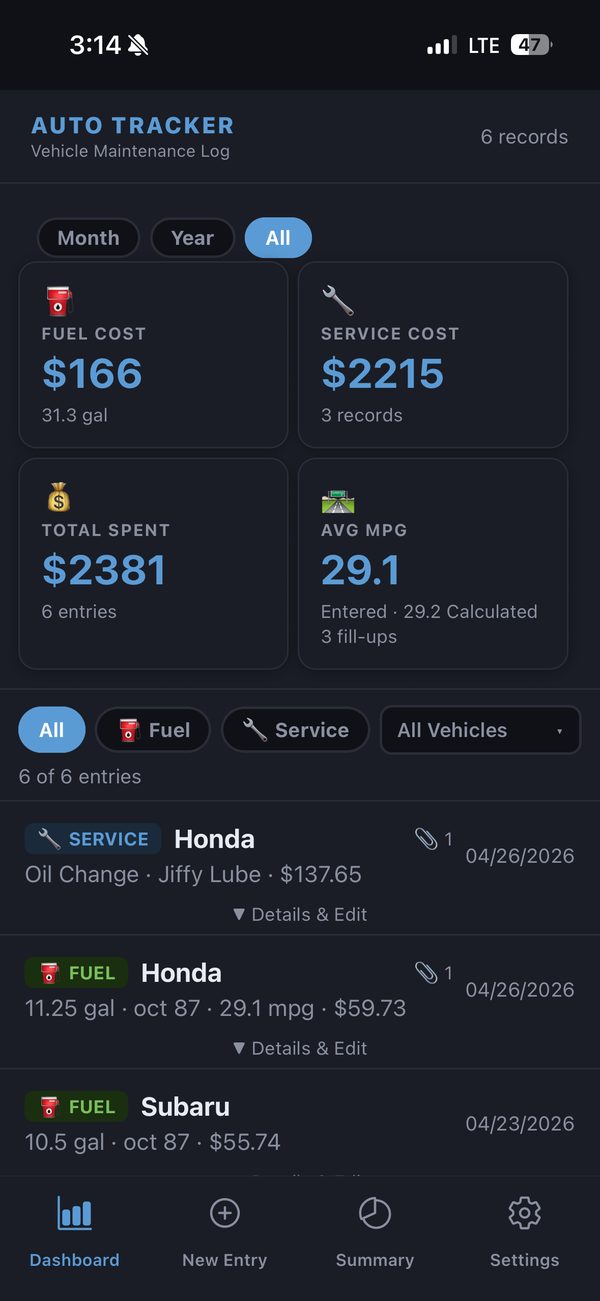
The app has five tabs: Dashboard, New Entry, Summary, Vehicles and Settings.
Add a vehicle
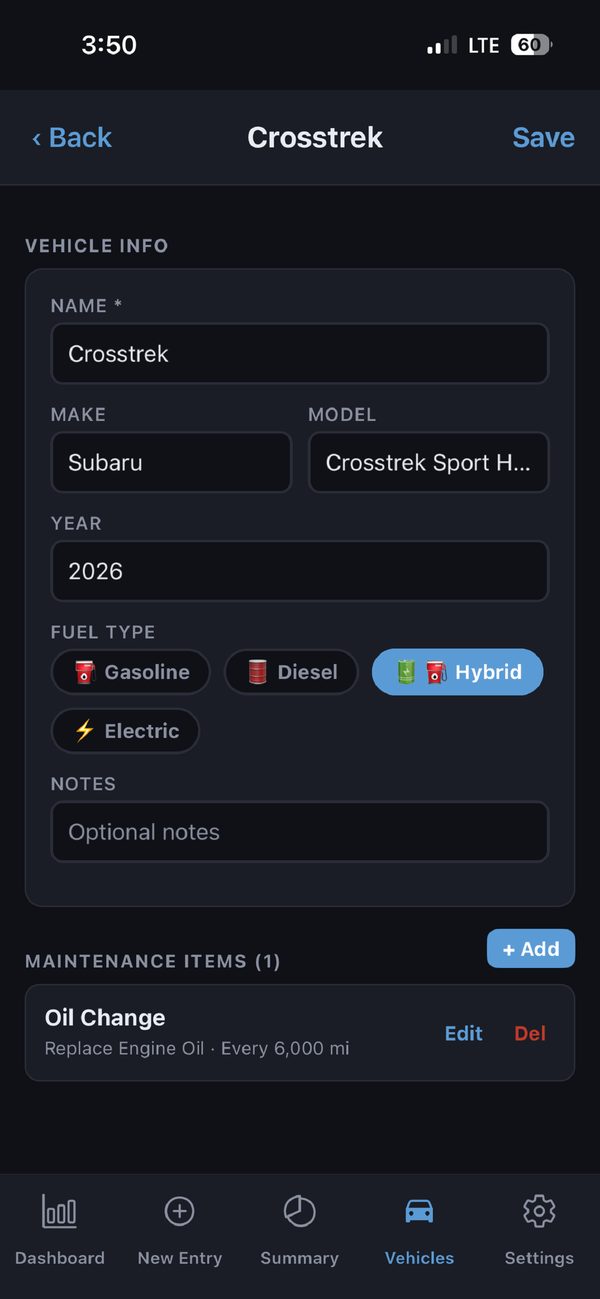
- Open Vehicles and tap +.
- Enter a name, make, model, year and fuel type.
- Add the maintenance items you want to keep an eye on, then tap Save.
You can add as many vehicles as you like.
Attach documents to a vehicle
On a vehicle’s screen, use Documents to keep reference files with it, such as the maintenance schedule PDF, the window sticker or a photo of a service record. Tap a document to view it, or X to remove it.
Log a fill-up
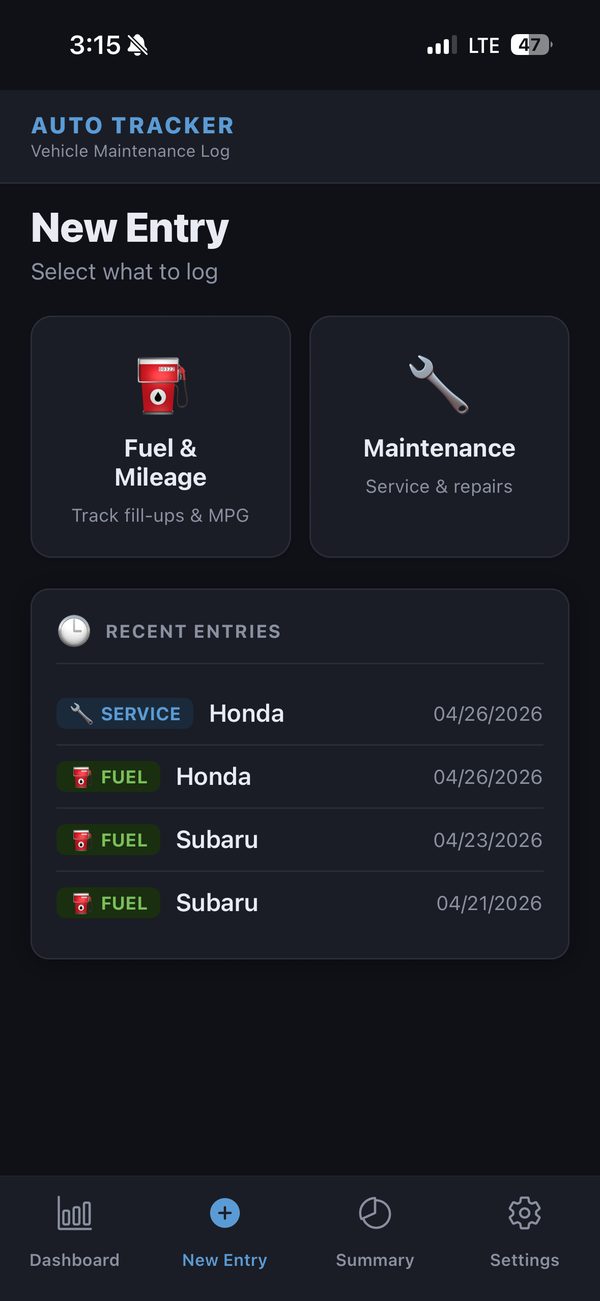
- Open New Entry and choose Fuel & Mileage.
- Pick the vehicle, then enter the date, odometer reading, amount and price per gallon (or liter).
- Optionally add the octane, notes and a receipt, then save.
Fuel economy is worked out from the miles driven since the previous fill-up.
Record maintenance
- Open New Entry and choose Maintenance.
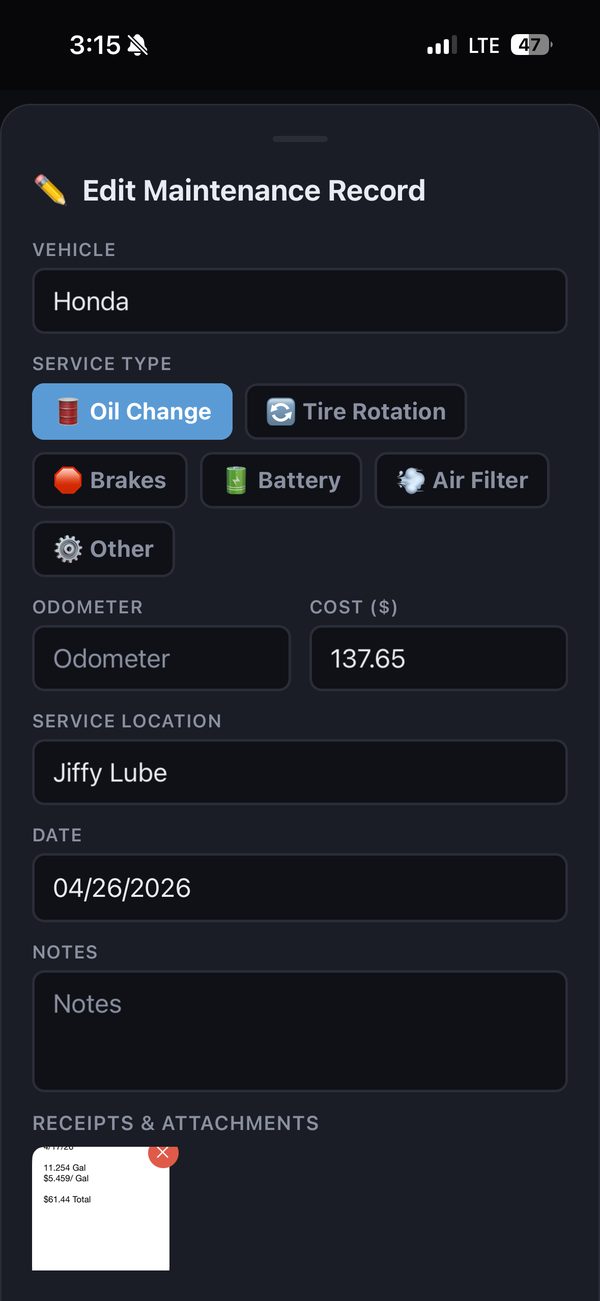
- Pick the service type (or Other and describe it), then enter the odometer, cost, location, date and notes.
- Attach the receipt if you have it, then save.
Attach receipts
When adding or editing an entry, tap the receipt button to take a photo, pick one from your library, or attach a PDF. AutoTracker asks for camera or photo access the first time.
See your totals
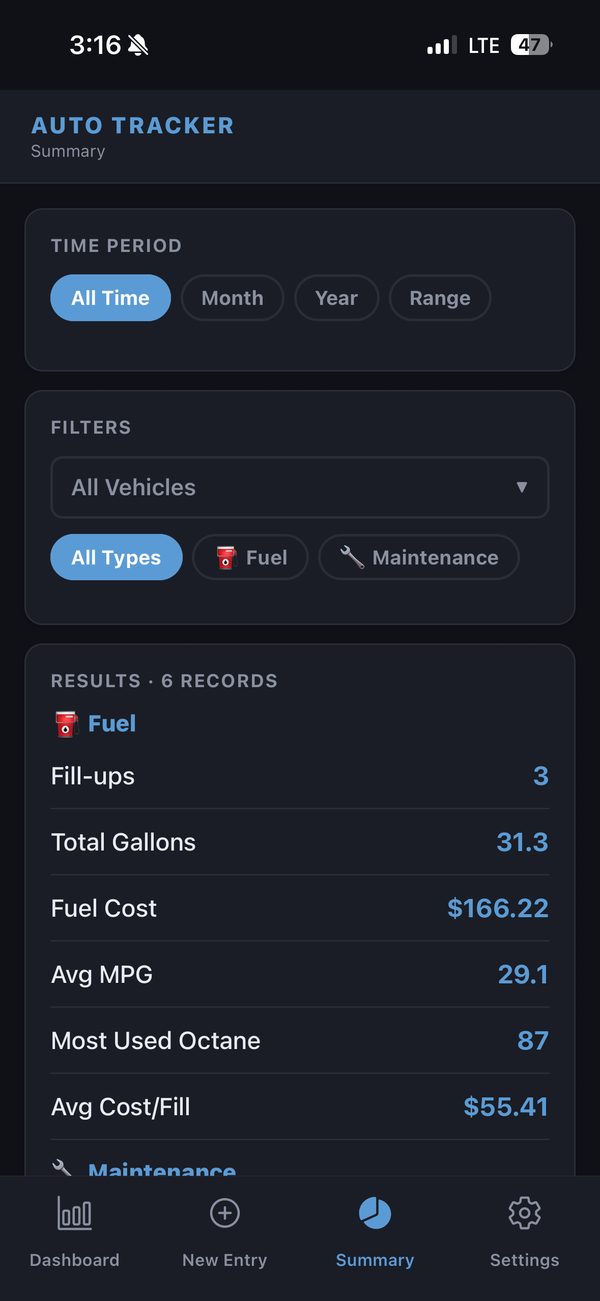
Summary shows fuel and service totals, average fuel economy and miles driven. Filter by time period and vehicle.
Charts
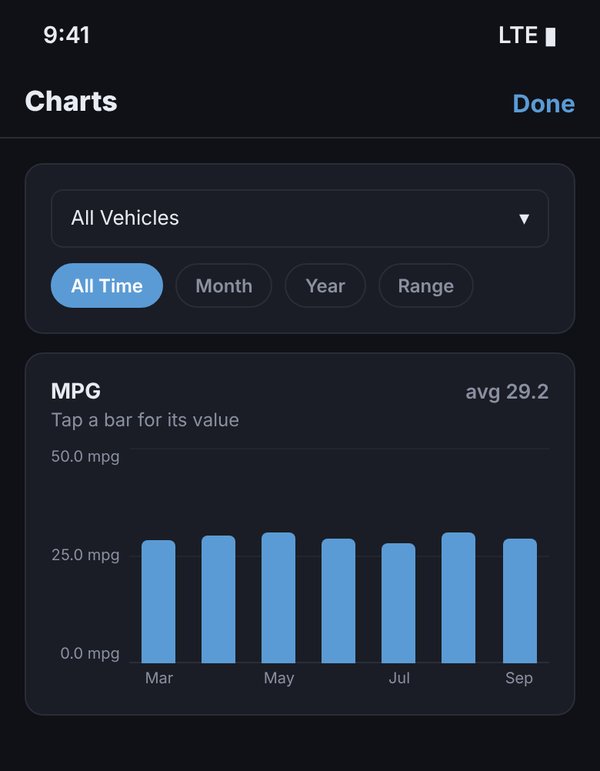
On Summary, tap 📊 Charts to see your data as bar charts. Choose a vehicle (or all vehicles) and a period: All Time, a Month, a Year or a Range of dates. The charts open with the filters already set on Summary.
| Chart | What it shows |
|---|---|
| Miles Driven | Distance driven in each period, from your odometer readings |
| MPG | Fuel economy in each period, with your average at the top right |
| Fuel Used | Gallons or liters bought |
| Cost per Mile | Fuel and maintenance spending divided by distance driven |
| Maintenance Costs | What you spent on services |
Tap a bar to read its exact value. A month shows weekly bars, up to three years shows monthly bars, and longer periods show yearly bars. Miles Driven, MPG and Cost per Mile need odometer readings, and MPG needs at least two fill-ups.
Edit or delete an entry
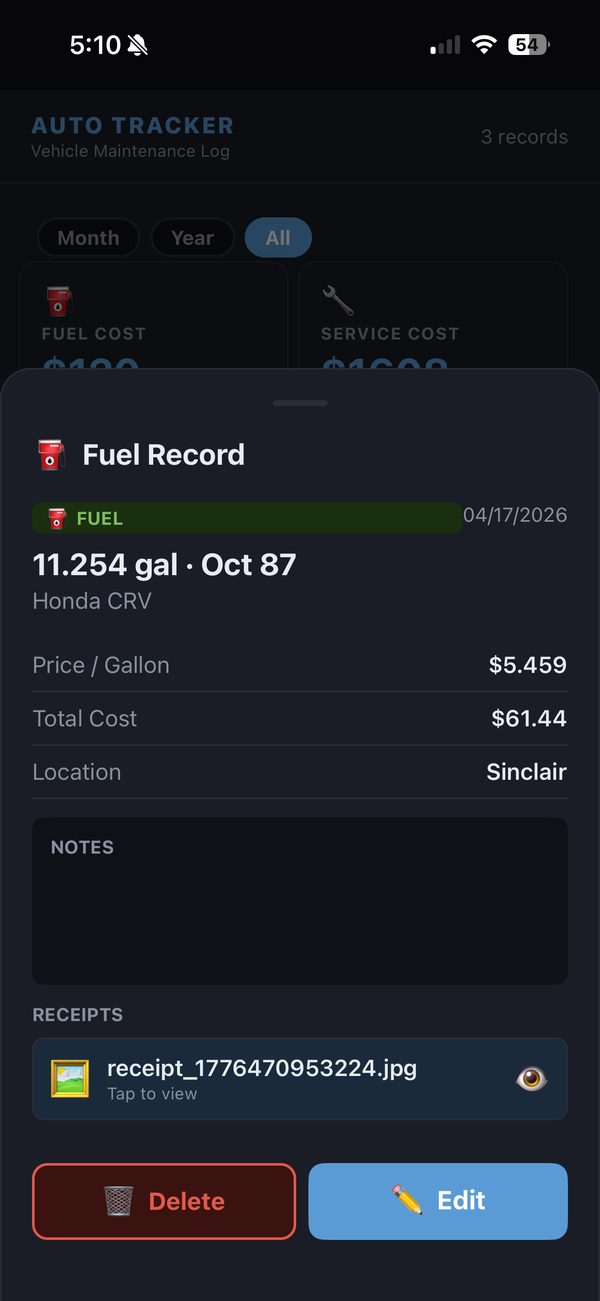
Tap an entry to see its details, then tap Edit or Delete. In a list, you can also swipe left to delete.
Use AutoTracker on a computer (same Wi-Fi)
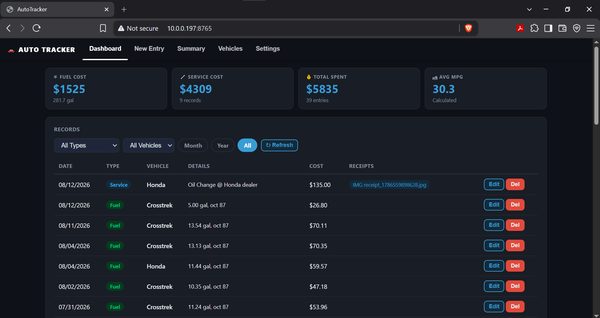
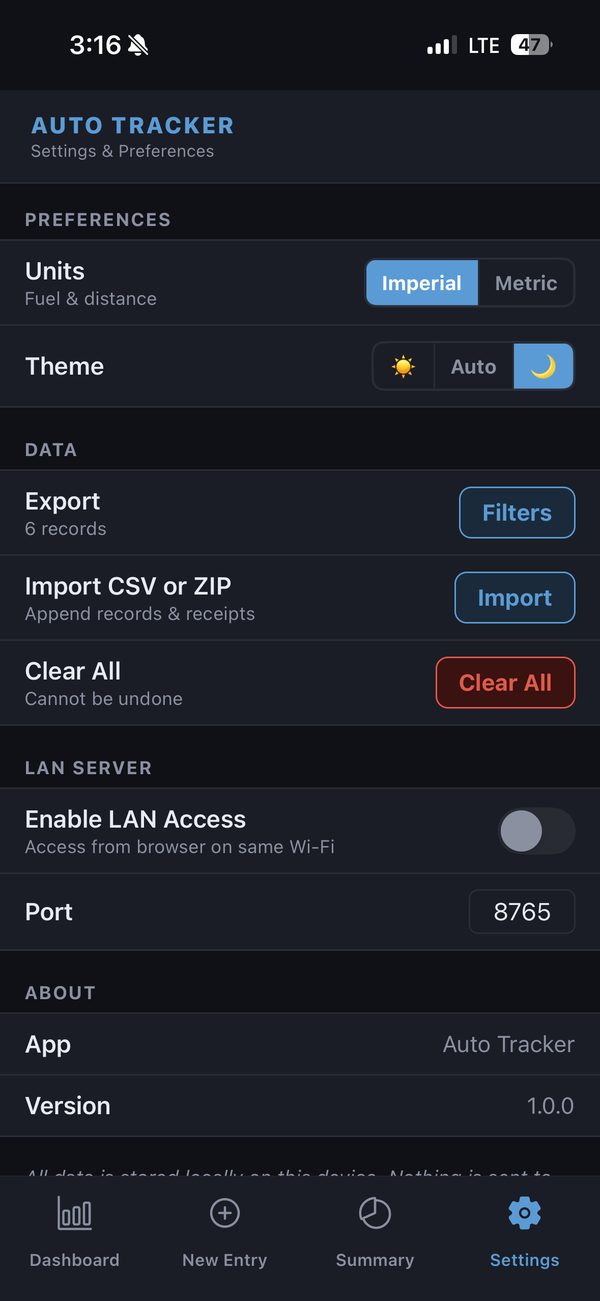
In Settings → LAN Server, turn on Enable LAN Access. Any computer on the same Wi-Fi can then open the address shown (for example http://192.168.1.20:8765) in a browser to view and edit your records on a big screen. Your data doesn’t leave your network: the iPhone itself serves the page. The page is only available while the setting is on, and anyone on the same network who knows the address can open it, so use it on networks you trust and turn it off when you’re done.
Choose where your data is kept
Settings → Storage → Storage Location keeps a synced copy of all your records in:
- a folder in the Files app, such as iCloud Drive or On My iPhone,
- a Nextcloud server, or
- any WebDAV server.
Use Sync to sync now. This is how you move your records to a new iPhone, or keep a backup you control.
Export and import
Settings → Data → Export saves your records as a ZIP (records and receipts) or as CSV only, and opens the share sheet. Import CSV or ZIP brings them back. The CSV has one row per record, with columns such as type, date, vehicle, odometer, cost, gallons, pricePerGallon and serviceType.
Apple Watch
Log a fill-up from the AutoTracker app on your Apple Watch. It’s sent to your iPhone and appears with your other entries.
Free trial and AutoTracker Pro
Every feature is free for 15 days. After that, unlock AutoTracker with a one-time purchase in Settings → Auto Tracker Pro. There’s no subscription. Bought it already on another device? Tap Restore.
Questions and answers
Is my data backed up?
Your records are stored on your iPhone, and they’re included in your iPhone’s iCloud or computer backup if you have one. For a copy you control, set a Storage Location (a Files folder such as iCloud Drive, Nextcloud or WebDAV) or Export a ZIP now and then.
Can I use AutoTracker on more than one device?
Set the same Storage Location (for example the same Nextcloud folder or iCloud Drive folder) on each device. On a computer, use LAN access to open your records in a browser.
Do I need an account or an internet connection?
No. There’s no account, and the app works offline. A connection is needed only for the in-app purchase and for syncing with a server you’ve chosen.
Which units are supported?
US (miles, gallons, MPG) and metric (kilometers, liters, L/100 km). Change it in Settings → Preferences → Units.
I bought AutoTracker Pro but it still shows the trial
Go to Settings → Auto Tracker Pro and tap Restore, signed in with the same Apple ID you bought it with. Check your internet connection first.
Troubleshooting
The fuel economy looks wrong
- Check the odometer reading on each fill-up. Fuel economy is the distance since the previous fill-up divided by the fuel added.
- A missed fill-up makes the next one look too good. Add it with its real date and odometer reading, and the numbers are recalculated.
- The first fill-up for a vehicle has nothing to compare against, so it has no fuel economy.
An entry is missing
- On Summary, check the time period and vehicle filters.
- Make sure the entry was saved: you’ll see it on the Dashboard straight away.
The camera or photos don’t open
Allow access in the iPhone’s Settings → Auto Tracker → Camera / Photos.
The browser can’t open the LAN address
- The computer and the iPhone must be on the same Wi-Fi network, and AutoTracker must be open on the iPhone.
- Type the address exactly as shown, starting with
http://. - Some guest or public networks block devices from reaching each other. Try your home network.
The app won’t open or crashes
- Close it from the app switcher and open it again.
- Restart the iPhone and check for an iOS update.
- Still crashing? Email us before deleting the app: deleting it erases records that aren’t in a backup or a Storage Location.
Still need help?
Email appinfo@cebaxo.com with your iPhone model, iOS version and the app version (in Settings → About).