BikeScale tracks the weight of your bike builds and every part in them. Everything stays on your device: no accounts, no cloud, no internet needed. For a quick tour, see the BikeScale videos.
Getting started
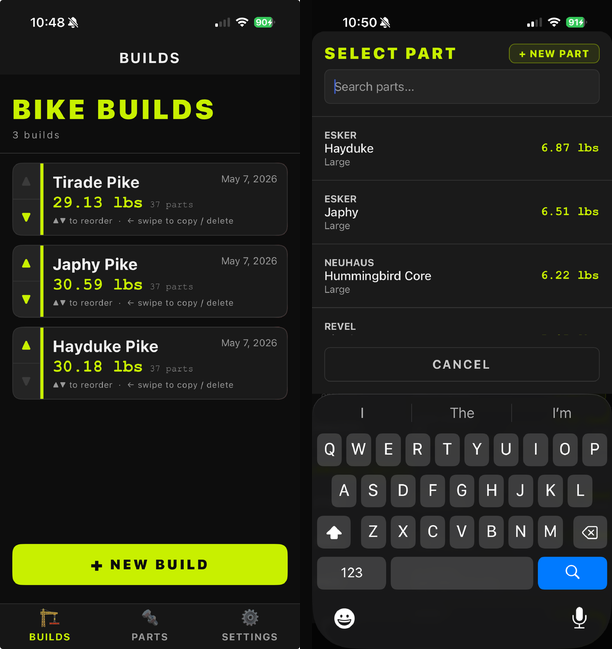
Add a bike
- On the Builds tab, tap + New Build.
- Choose the parts for the complete build. The app guides you through each component so you don’t forget one.
- Give the build a nickname and tap Create.
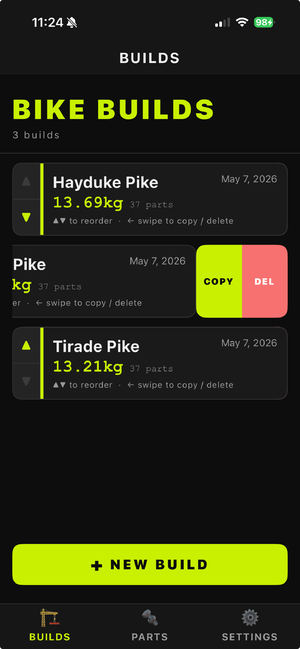
Swipe a build left to copy or delete it. Copying is the quickest way to compare, say, two wheelsets.
Add a part
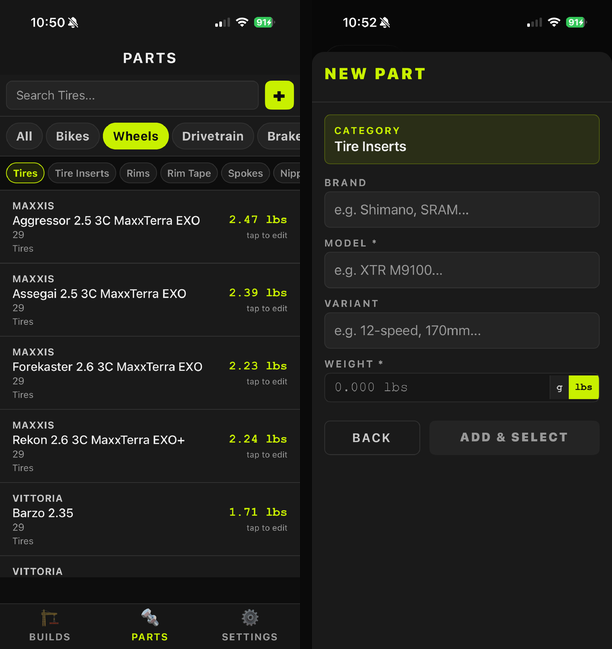
Add parts from the Parts tab, or while creating a build.
- Tap Parts → +.
- Pick the category, then enter the part and its weight.
- Choose grams or pounds. It starts with the unit set in Settings.
Swipe a part left to delete it from your inventory.
View and change a build
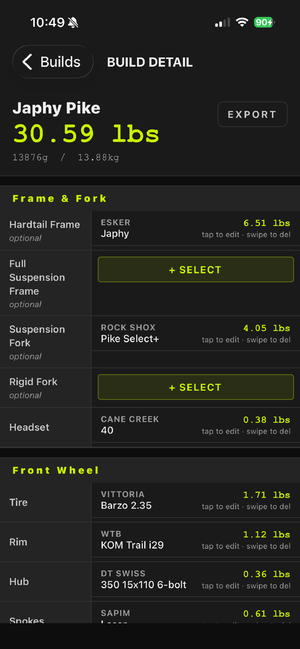
The Builds tab lists all your builds; you can change their order. Open a build to change which parts are in it and see the total weight.
Edit or delete
Swipe left on an entry to delete it. Tap a part to change its details.
Supporting the developer
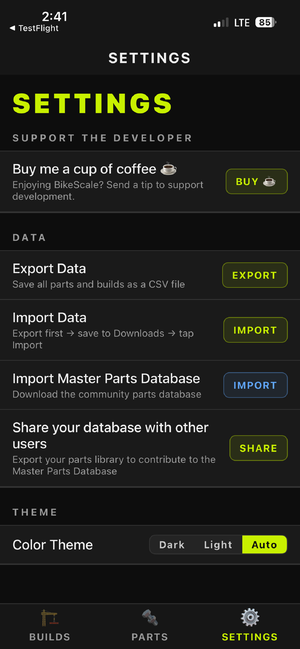
BikeScale is built and maintained independently. If you enjoy it, you can send an optional one-time tip from Settings → Support the Developer → Buy me a cup of coffee ☕. It uses your App Store or Google Play account, and it doesn’t change anything in the app.
At most once a week, the app may suggest a tip. Maybe later dismisses it for at least another week.
Questions and answers
Is my data backed up?
Your data is stored on your device and included in your iPhone’s iCloud or computer backup if you have one. The app doesn’t upload it anywhere. Use Settings → Export Data for a copy you control.
Can I use BikeScale on more than one device?
Not yet: each device keeps its own data. Restoring a backup to a new iPhone brings your data with it.
Can I export my data?
Yes. Settings → Export Data creates a CSV file you can email, save to Files or share with any app.
Does BikeScale need an internet connection or an account?
No. The only thing that needs a connection is the optional tip, which goes through the App Store or Google Play.
Which units are supported?
Grams and pounds. Change the default in Settings → Display Unit.
Can I turn off the weekly tip reminder?
There’s no switch for it yet. Maybe later hides it for at least a week.
Troubleshooting
The tip didn’t go through
- Check your internet connection.
- Make sure your App Store or Google Play account can make purchases. Screen Time or parental controls can block them.
- Charged but no thank-you in the app? Check your purchase history, then email us if something still looks wrong.
The app won’t open or crashes
- Close it from the app switcher and open it again.
- Restart your device and check for software updates.
- Still crashing? Email us before deleting the app: deleting it erases data that isn’t in a backup or an export.
The app is slow
Close other apps and restart your device. With a very large inventory, deleting parts you no longer use helps.
Still need help?
Email appinfo@cebaxo.com with your device model, its software version and the app version.